---
title: "OneNote 2016 is Dead, Long Live OneNote for Windows, Part II"
description: "OneNote 2016 is being retired, but the new OneNote is probably already installed on your computer."
url: "https://www.omegatechnicalsolutions.com/blog/onenote-2016-is-dead-long-live-onenote-for-windows-part-ii"
date: "2026-06-25T10:58:10+00:00"
language: "en-GB"
---
## Omega Technical Solutions Blog
Omega Technical Solutions has been serving the Haymarket area since 2007, providing IT Support such as technical helpdesk support, computer support, and consulting to small and medium-sized businesses.
[ Categories ](https://www.omegatechnicalsolutions.com/blog/categories "Categories")
[ Tags ](https://www.omegatechnicalsolutions.com/blog/tags "Tags")
[ Categories: All Categories ](https://www.omegatechnicalsolutions.com/javascript:void(0); "Categories")
Search...Suggested keywords
[ x ](https://www.omegatechnicalsolutions.com/javascript:void(0);)
# OneNote 2016 is Dead, Long Live OneNote for Windows, Part II
[Omega Technical Solutions Blog](https://www.omegatechnicalsolutions.com/blog/categories/blog) [Technology](https://www.omegatechnicalsolutions.com/blog/categories/technology)
[Steven Holmes](https://www.omegatechnicalsolutions.com/blog/blogger/steven-holmes)
Wednesday, 03 July 2019
[ 0 Comments ](https://www.omegatechnicalsolutions.com/blog/onenote-2016-is-dead-long-live-onenote-for-windows-part-ii#comments)
[  ](//www.omegatechnicalsolutions.com/images/easyblog_shared/July_2019/7-3-19/onenote_gone_400.jpg "OneNote 2016 is Dead, Long Live OneNote for Windows, Part II")
Microsoft is saying goodbye to OneNote 2016. Although the handy note-taking app will still be supported until October 2020, with extended support for a few more years after, Microsoft has decided to no longer add features to it, and instead, they are focusing on the new version of OneNote that comes bundled with Windows 10.
Let’s talk about how to make the switch between the two.
## Check to Make Sure You Have OneNote Installed
If you are a frequent user of Microsoft OneNote, you’ll want to know what version you are actually using. If you have Office 2016 or Office 365, chances are you are using OneNote 2016.
If you are pretty new to OneNote, you might just have the newer version that came bundled with Windows 10. If that’s the case, you don’t have anything more to do!
If you aren’t sure, there are a few ways to check.
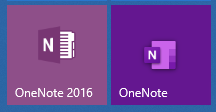
The older version of OneNote is typically labeled as **OneNote 2016** while the new version is just called **OneNote**. You’ll also notice a difference between the icons, as shown above.
To check to see if you have the new OneNote installed, click on the **Start Menu** and **type ‘onenote’** and you should see the app just labeled as ‘**OneNote**.’ If you have 2016, that should show up there too.
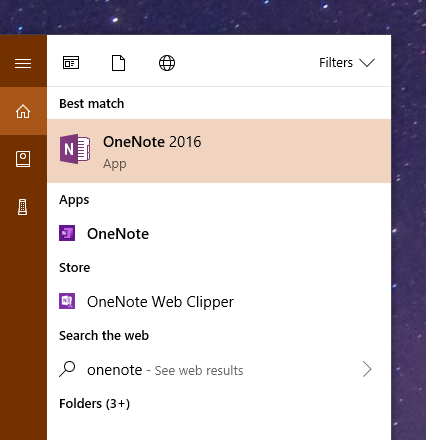
If you don’t see the new version of OneNote, you are either very behind on your updates, or it wasn’t dished out to your workstation. Either way, it’s best to check with IT if that’s the case or give COMPANYNAME a call at PHONENUMBER.
You can open and use the new OneNote app at any time, but your notes from OneNote 2016 might not appear. Keep in mind you’ll also need to sign into the new OneNote for the first time with your Microsoft or Office 365 account, which might require your IT admin.
## Migrating Notes from OneNote 2016 to OneNote
OneNote 2016 has a couple different ways it can store a notebook. Chances are even if you use OneNote a lot, you probably don’t realize how it’s working behind the scenes, because it rarely asks you if and where you want to save something. That’s part of the beauty with every version of OneNote - once it’s set up, it just saves everything you do on the fly.
### First, Let’s Back Up Your OneNote 2016 Notebooks
**Back Up your OneNote 2016 Notebook**
Open OneNote 2016 and perform the following to back your notes up.
1. Click **File > Options**.
2. In the **OneNote Options** dialog box, choose **Save & Backup**.
3. On the right, you’ll see a section called **Save**. Select **Backup Folder**.
4. Click the **Modify**… button.
5. Choose a destination to store your backup. A good spot would be a folder called **OneNote 2016 Backup** in your Documents folder or on your desktop. Once you’ve found a place to put your backup, click **Select**.
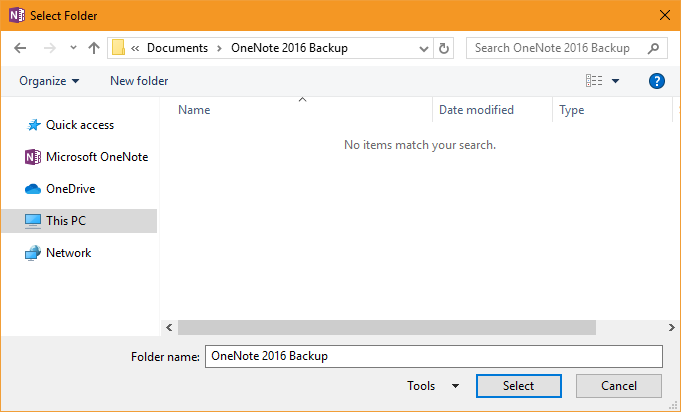
6. Then click **Ok** on the **OneNote Options dialog**.
7. Go back to **File > Options > Save & Backup**.
8. On the right, in the section labeled **Backup**, click **Back Up All Notebooks Now**.
9. Wait for OneNote to finish backing up your notebooks.
### Try Simply Opening Your Notebooks in OneNote
OneNote 2016 stores all of your notes in notebooks. These notebooks, by default, are either stored in your Documents folder in their own folder, or on Microsoft OneDrive. You can also store notebooks on a shared location on your network or essentially anywhere else.
If you are using one of the default options, the new version of OneNote will likely have no problem pulling up your old notebooks.
**Open OneNote (the new version) and Try Opening Your Notebooks**
1. Simply type ‘**onenote**’ into your **Start Menu** and open the new OneNote app.
2. Click **Notebooks** to see a list of your notebooks.
3. Click **More Notebooks**… and see if you can see your previous notebooks appear in the list. Keep in mind you’ll need to be signed in, especially if your previous notebooks were stored in OneDrive.
4. Simply **Check the boxes** next to each notebook you want to add to the new version of OneNote and click **Open**. That’s it!
If your notebooks aren’t being found, it is likely that they aren’t stored in a folder that the new OneNote recognizes. For example, if you’ve stored a notebook on your network instead of in the Documents folder that OneNote expects, the new OneNote won’t find it.
If that’s the case, you’ll need to find where you are storing your OneNote notebooks and drag them into your Documents folder.
**WARNING:** Before you do this, consult with IT, as there may be a reason your Notebook is stored centrally on the network instead of on your workstation. If that’s the case, a technician will want to export your OneNote notebooks and deploy them in the proper location or help push them to the cloud so they can continue to be accessed without needing to be stored directly on your workstation.
We hope this guide helps, and if you have any trouble moving your notes over to the new OneNote, don’t hesitate to give us a call at PHONENUMBER.
[ ](https://www.omegatechnicalsolutions.com/javascript:void(0);) [ ](https://www.omegatechnicalsolutions.com/javascript:void(0);) [ ](https://www.omegatechnicalsolutions.com/javascript:void(0);)
Tags:
[Microsoft](https://www.omegatechnicalsolutions.com/blog/tags/microsoft) [OneNote](https://www.omegatechnicalsolutions.com/blog/tags/onenote) [Office 365](https://www.omegatechnicalsolutions.com/blog/tags/office-365)
[ How the EU’s General Data Protection Regulation is... ](https://www.omegatechnicalsolutions.com/blog/how-the-eu-s-general-data-protection-regulation-is-working-after-the-first-year)
[ OneNote 2016 is Dead, Long Live OneNote for Window... ](https://www.omegatechnicalsolutions.com/blog/onenote-2016-is-dead-long-live-onenote-for-windows-part-i)
About the author
[  ](https://www.omegatechnicalsolutions.com/blog/blogger/steven-holmes)
[Steven Holmes](https://www.omegatechnicalsolutions.com/blog/blogger/steven-holmes)
[ ](https://www.omegatechnicalsolutions.com/javascript:void(0); "Subscribe to updates from author") [ ](https://www.omegatechnicalsolutions.com/javascript:void(0);) [ ](https://www.omegatechnicalsolutions.com/blog/blogger/steven-holmes)
Mr. Holmes is responsible for the structure, strategy and execution of Omega Technical Solutions’ team. He also has an extensive background in designing, engineering, and securing Enterprise and Data Center networks.
Author's recent posts
[More posts from author](https://www.omegatechnicalsolutions.com/blog/blogger/steven-holmes)
[ Saturday, 27 June 2026 How to Actually Make a Quiet Day Work for Your Business ](https://www.omegatechnicalsolutions.com/newsletter-content/how-to-actually-make-a-quiet-day-work-for-your-business)
[ Thursday, 25 June 2026 How to Mix Cloud and Office Servers Without Making Your Employees Miserable ](https://www.omegatechnicalsolutions.com/newsletter-content/how-to-mix-cloud-and-office-servers-without-making-your-employees-miserable)
[ Wednesday, 24 June 2026 The Silent Liability Sitting On Your Team’s Desks Right Now ](https://www.omegatechnicalsolutions.com/blog/the-silent-liability-sitting-on-your-team-s-desks-right-now)
Comments
No comments made yet. Be the first to submit a comment
**** Already Registered? [Login Here](https://www.omegatechnicalsolutions.com/component/users/login?return=aHR0cHM6Ly93d3cub21lZ2F0ZWNobmljYWxzb2x1dGlvbnMuY29tL2Jsb2cvb25lbm90ZS0yMDE2LWlzLWRlYWQtbG9uZy1saXZlLW9uZW5vdGUtZm9yLXdpbmRvd3MtcGFydC1paQ==&Itemid=101)
Thursday, 25 June 2026
Subscribe to the blog (Please fill in your email address to subscribe to updates from this post.)
**Captcha Image**
## Schema
```json
{
"@context": "https://schema.org",
"@type": "BreadcrumbList",
"itemListElement": [
{
"@type": "ListItem",
"position": 1,
"name": "Home",
"item": "https://www.omegatechnicalsolutions.com"
},
{
"@type": "ListItem",
"position": 2,
"name": "Blog",
"item": "https://www.omegatechnicalsolutions.com/blog"
},
{
"@type": "ListItem",
"position": 3,
"name": "Steven Holmes",
"item": "https://www.omegatechnicalsolutions.com/blog/blogger/steven-holmes"
},
{
"@type": "ListItem",
"position": 4,
"name": "OneNote 2016 is Dead, Long Live OneNote for Windows, Part II",
"item": "https://www.omegatechnicalsolutions.com/blog/onenote-2016-is-dead-long-live-onenote-for-windows-part-ii"
}
]
}
```